
How to recover a flagged profile after a browser fingerprint mismatch
Learn how to recover a flagged profile after a browser fingerprint mismatch, restore account trust, and prevent future flags with safe, step-by-step fixes.

If you’re searching for How to recover a flagged profile after a browser fingerprint mismatch, you’re likely dealing with one of the most frustrating problems in multi-account management: a profile that was working normally until the platform detected a change in browser identity, device signals, or session behavior. For marketers, affiliates, e-commerce operators, and agencies, that kind of flag can interrupt campaigns, lock out revenue-generating accounts, and create a chain reaction across related profiles if the recovery process isn’t handled carefully.
The good news is that a flagged profile is not always a lost profile. In many cases, the issue is triggered by a mismatch between what the platform expected to see and what your browser suddenly presented—things like user agent shifts, timezone inconsistencies, canvas or WebGL changes, proxy instability, cookie loss, or a profile opened from the wrong environment. Recovery starts with understanding what changed, isolating the affected account, and restoring a stable, consistent fingerprint before you attempt any login, appeal, or verification step. If you want a deeper playbook on avoiding cross-account damage during this process, our guide on recovering a flagged account without linking it to your other profiles is a useful companion read.
In this article, we’ll break down what actually causes fingerprint mismatch flags, how to diagnose the problem without making it worse, and the practical steps to recover the profile safely. We’ll also cover the prevention side—because in most cases, the fastest recovery is the one that doesn’t trigger a second flag. For teams managing multiple client, marketplace, or ad accounts, using a stable antidetect workflow can make a major difference, and tools like GoUndetected.io are built specifically to help keep profiles isolated, consistent, and easier to recover when something goes wrong.
What a Flagged Profile Means
A flagged profile usually means the platform’s trust systems have found enough inconsistencies to treat the account as suspicious. That does not always equal a ban, but it often means reduced reach, extra verification, or stricter review on future actions.
Fingerprint mismatch
Fingerprint mismatch happens when the browser, device, or network signals attached to a profile do not line up with its previous history. A profile that suddenly changes timezone, language, canvas data, WebGL output, or IP reputation can look like it has been “moved” to a new user.
For multi-account teams, the issue is not a single bad signal but the pattern. If several identifiers shift at once, the platform may classify the session as high risk and add friction before allowing normal activity.
Detection triggers
Platforms typically flag accounts after repeated behaviors that resemble automation, account farming, or shared access. Common triggers include rapid logins, repeated device resets, proxy hopping, and identical action patterns across multiple profiles.
- Unusual login geography or time zone changes
- High-volume actions in a short window
- Reused cookies, fingerprints, or IPs
- Login attempts from blocked or low-trust networks
Risk signals
Risk signals are the smaller warnings that appear before a full restriction. They may include CAPTCHA challenges, shadow-limited engagement, email or phone verification prompts, and temporary action blocks. Each one suggests the profile is losing trust, even if it remains accessible.
To reduce exposure, teams should monitor these indicators together rather than in isolation. A single prompt may be harmless, but a cluster of warnings usually means the profile is entering a higher-risk state.
Why Mismatches Happen
Fingerprint mismatches usually appear when a platform sees two signals that should belong to the same device but don’t line up anymore. The most common triggers are routine changes: a browser update, a different machine profile, or a new proxy route. Even small shifts can make an account look inconsistent if the surrounding fingerprint stays the same.
Browser updates
Browser versions change how the user agent, rendering engine, canvas output, and supported APIs behave. That means an account that looked stable yesterday can suddenly produce a different fingerprint after an automatic update, especially if you manage multiple profiles across several devices or sessions.
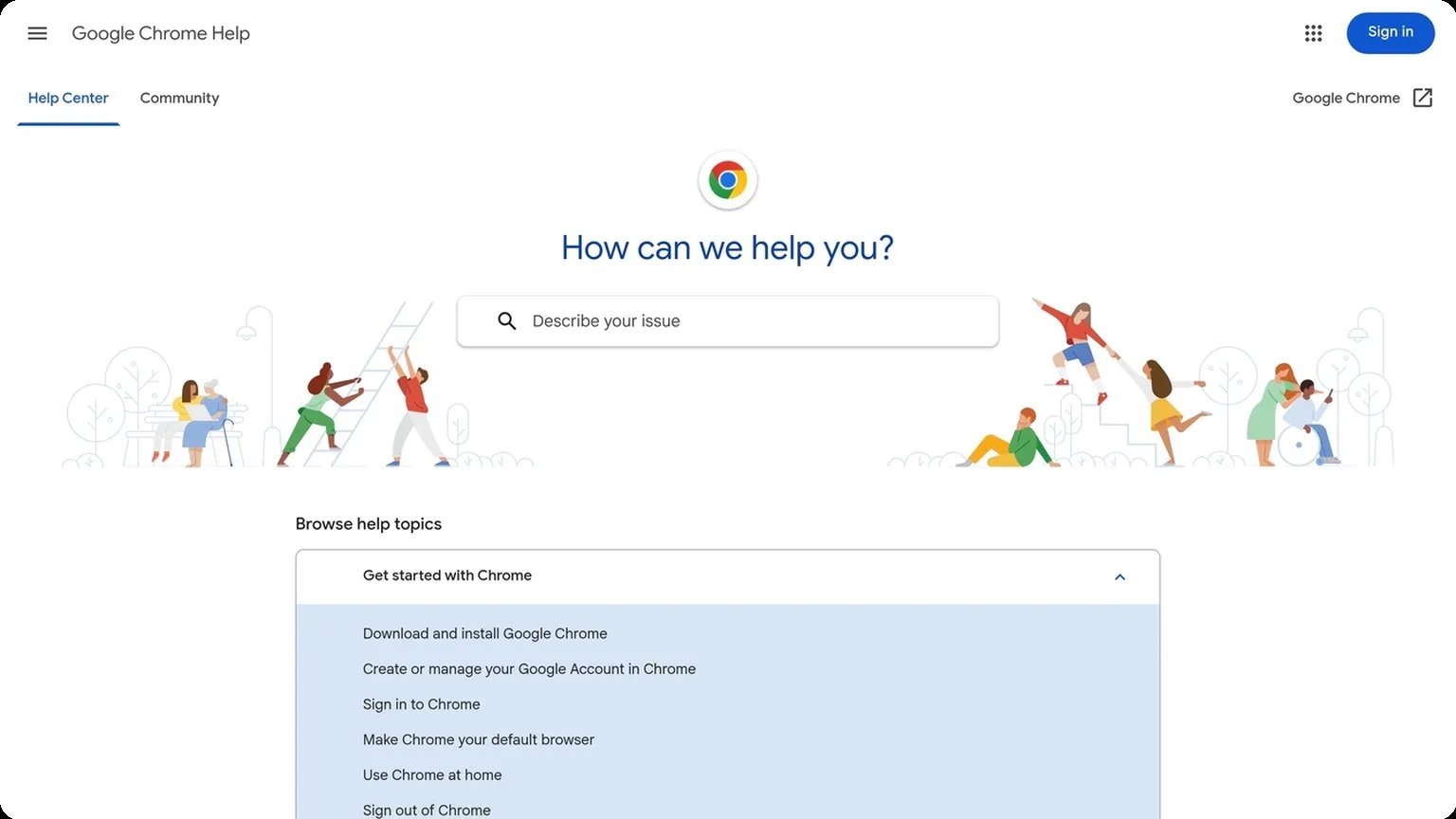
To reduce noise, keep update behavior consistent across your setup and avoid mixing old sessions with fresh browser builds. If you need to verify what changed, check the browser vendor’s release notes or help center, such as Chrome Help. A simple review process helps you spot whether the mismatch came from the browser itself or from another layer in your stack.
Device changes
Switching laptops, virtual machines, monitors, or even OS settings can alter hardware-related signals like screen resolution, timezone, fonts, and WebGL output. Platforms often treat these as high-confidence identifiers because they tend to remain stable for legitimate users.
Common device-change triggers include:
- New operating system or patch level
- Different screen size or scaling
- Changed language, timezone, or keyboard layout
- New GPU, VM, or remote desktop environment
Proxy shifts
Proxy changes are another major source of mismatch because IP reputation, geolocation, and ASN data can all shift at once. If your browser fingerprint suggests one region but your proxy exits from another, the account may be flagged for a location inconsistency.
Stable routing matters just as much as the proxy type itself. Residential, mobile, and datacenter proxies behave differently, and frequent rotation can create a pattern that looks automated. For a quick comparison:
| Proxy type | Typical strength | Mismatch risk |
|---|---|---|
| Residential | Looks closer to real user traffic | Lower if kept consistent |
| Mobile | Strong trust in many platforms | Lower, but costlier |
| Datacenter | Fast and scalable | Higher if reputation is poor |
Check Your Profile Settings
Before you launch any account, take a few minutes to verify the profile’s browser fingerprint. A clean proxy is only one part of the equation; mismatched profile settings can still expose patterns that platforms flag during login, posting, or ad delivery.
User Agent
Your user agent should match the browser, operating system, and device profile you intend to simulate. If your profile says Windows Chrome but the user agent reports macOS Safari, that inconsistency can stand out immediately. For multi-account work, consistency matters more than novelty.
Keep these checks in mind:
- Use a user agent that matches the selected browser engine.
- Align the OS version with your proxy geography and device type.
- Avoid frequent user-agent switching on the same account.
Timezone
Timezone is one of the easiest fingerprint signals to audit, and one of the most common mistakes in profile setup. If your proxy exits in Berlin but your browser reports a New York timezone, the mismatch can weaken trust scores and trigger extra verification. For best results, sync timezone to the proxy location or to the account’s natural market.
Use a simple rule: one profile, one consistent regional identity. If you manage accounts across markets, create separate profiles rather than forcing one timezone across all sessions. For more background on browser fingerprinting signals, see Chrome Help and related browser documentation.
Canvas Data
Canvas fingerprinting measures how your browser renders graphics, and it is one of the more persistent signals sites use to identify repeated sessions. You do not need to “fake” it randomly; you need stable, believable variation that stays consistent for each profile over time.
In practice, the goal is to avoid a canvas signature that is identical across many accounts or changes too often. A reliable antidetect setup should preserve profile-level stability while reducing cross-account correlation. If you want a practical benchmark, compare settings like this:
| Setting | Good practice | Risky pattern |
|---|---|---|
| User agent | Matches browser and OS | Conflicts with device profile |
| Timezone | Matches proxy region | Shows a different country |
| Canvas data | Stable per profile | Changes every session |
Match the Environment Again
Once the basic fingerprint is fixed, the next step is to make the surrounding environment look consistent. Platforms rarely flag a single mismatch in isolation; they look for patterns across device signals, language settings, and network behavior. The goal here is simple: reduce contradictions so each profile behaves like a believable, repeatable user session.
Recreate device
Start by matching the core hardware and software signals that a real user would naturally keep stable. That means using the same OS family, browser engine, screen size, time zone, and key device characteristics every time you reopen the account. If a profile is supposed to be a Windows desktop user, don’t let it suddenly appear as a different browser version or a mobile-like viewport.
A practical setup checklist helps keep this consistent:
- Keep OS and browser version aligned with the profile history.
- Use the same screen resolution and scaling settings.
- Preserve timezone, language, and hardware-related values.
- Avoid switching between desktop and mobile behavior on the same account.
Align locale
Locale is more than translated text. It includes browser language, operating system language, region format, keyboard layout, and the timezone that your account activity appears to come from. If these signals conflict, even a well-masked browser can look artificial to a risk engine.
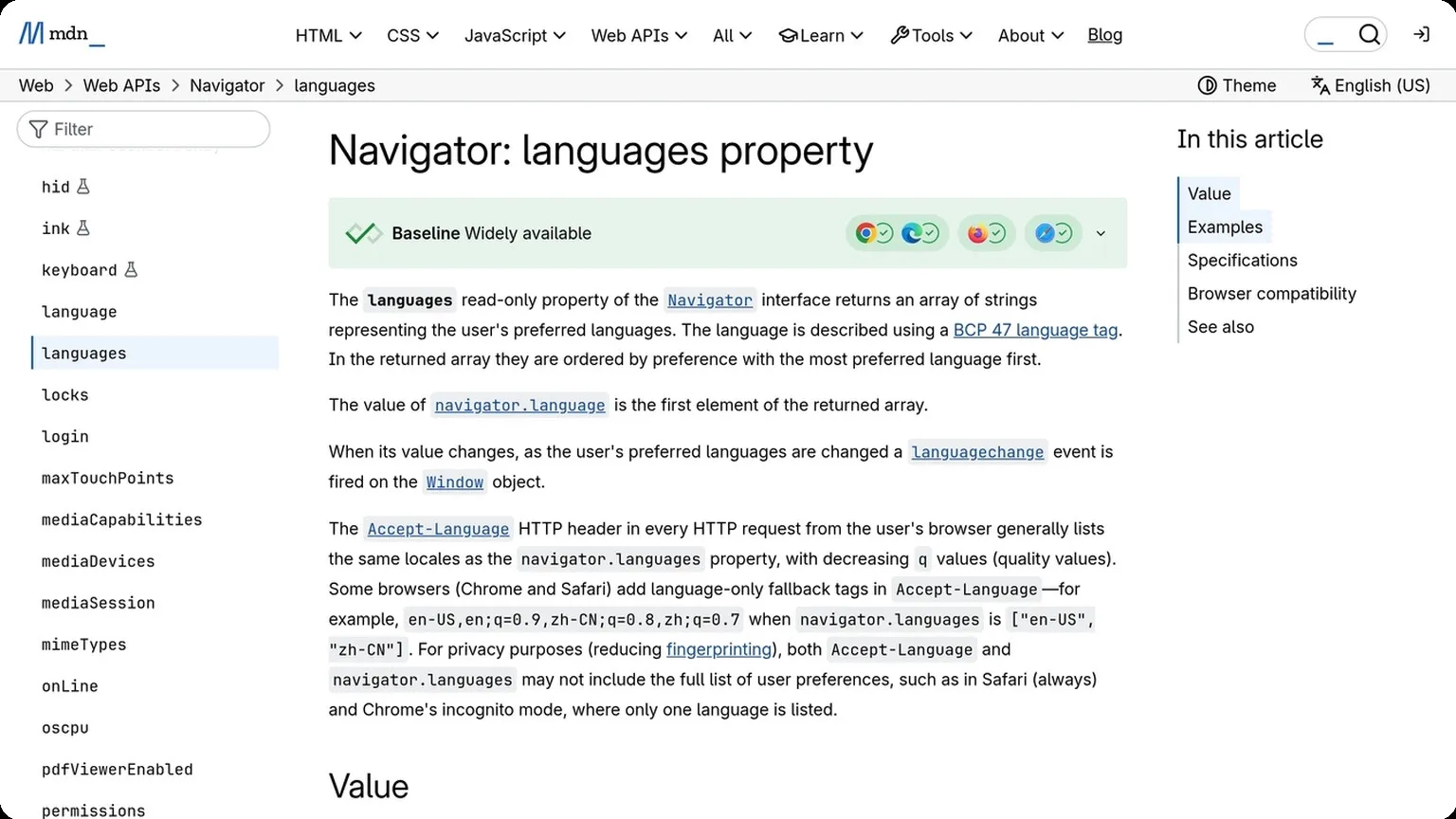
For best results, make the locale match the account’s intended audience and history. If you manage multiple regions, keep each profile internally consistent rather than mixing settings from different countries. For reference on how browsers expose language preferences, see the MDN Navigator.languages documentation.
Stabilize network
Network consistency is often the deciding factor in whether a profile feels trustworthy. Frequent IP changes, proxy rotation without context, or location jumps across sessions can trigger extra checks even when the browser fingerprint itself is clean.
Use one stable network identity per profile whenever possible, and keep the connection type appropriate for the account’s behavior. A quick comparison:
| Network option | Best use | Risk level |
|---|---|---|
| Residential proxy | Long-lived, location-based accounts | Lower |
| Datacenter proxy | Testing and low-sensitivity tasks | Higher |
| Frequent IP rotation | Short actions only | Highest |
Recover Safely
Once the account is back online, the goal is to reintroduce activity without triggering another review. A careful recovery plan reduces the chance of repeated flags and gives you clearer data on what actually caused the issue.
Clear conflicts
Start by removing anything that could still look inconsistent to the platform. That usually means pausing overlapping sessions, logging out unused devices, and checking whether your browser profile, proxy, or fingerprint settings changed during the outage. If multiple accounts share the same network path or device signals, isolate them before you do anything else.
It also helps to review recent changes in one place. Keep the recovery path simple and document what was adjusted so you can roll back quickly if needed.
- End all active sessions on the affected account.
- Confirm the proxy/IP matches the intended region.
- Revert any new extensions, cookies, or automation rules.
- Separate accounts that may have cross-contaminated signals.
Test slowly
Do not jump straight back to full-volume activity. Reopen the account with low-risk actions first, such as viewing pages, checking messages, or making a small profile edit. This gives you a clean signal on whether the recovery worked before you add transactional or outreach behavior.
A staged return is especially important for multi-account workflows, where one rushed login can create a second alert. If you manage many profiles, use a controlled environment like GoUndetected to keep each profile’s identity and browser state separated while you ramp up.
- Log in and verify access.
- Wait before performing any high-risk action.
- Test one workflow at a time.
- Increase volume only after stable behavior.
Monitor logs
Recovery is not complete until you can confirm there are no new warnings, challenge pages, or authentication errors. Check platform notifications, email alerts, and any internal logs tied to your browser or proxy stack. The fastest way to spot a pattern is to compare the exact time of the issue against your last changes.
If you see repeated friction, treat it as a signal rather than a one-off glitch. Use a simple review table to track what happened and what changed next.
| Signal | What it may mean | Next step |
|---|---|---|
| Login challenge | Trust reset or device mismatch | Pause and recheck session setup |
| Action delay | Rate sensitivity | Reduce activity and retest later |
| Repeated warnings | Persistent conflict | Rebuild the profile from a clean state |
Prevent Future Flags
Once you’ve cleaned up a suspicious account, the goal is to keep it stable. Most future flags come from small, repeatable mistakes: changing too many variables at once, logging in from inconsistent environments, or letting team members improvise settings. A tighter workflow makes your next sessions look more natural and far less risky.
Lock settings
After an account is verified, lock down the browser profile so its core fingerprint stays consistent. That means keeping the same device parameters, time zone, language, and proxy assignment unless you have a clear reason to change them. Sudden shifts are one of the fastest ways to trigger platform risk checks.
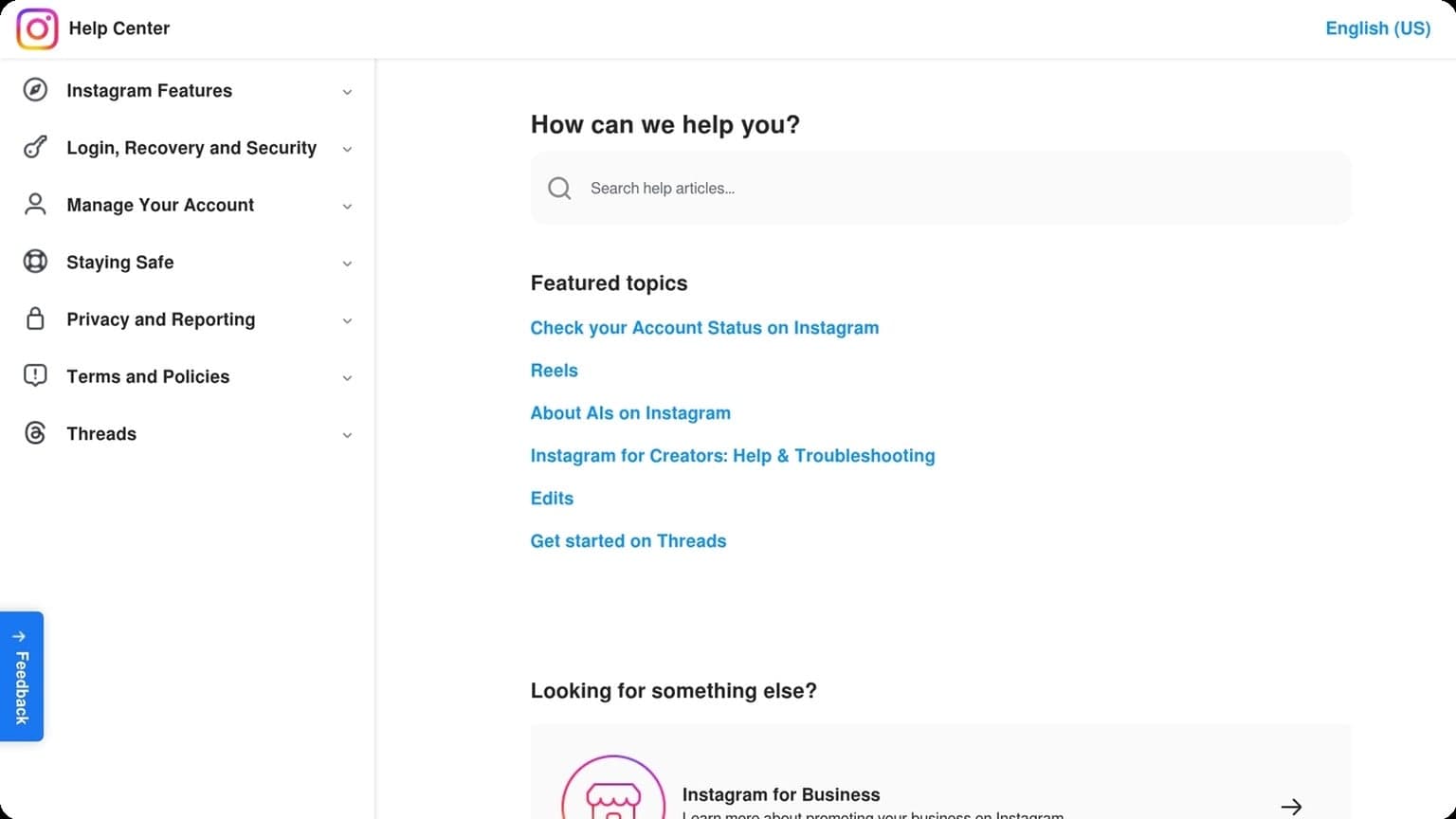
Use a simple rule: if the account is stable, do not touch it. If a change is necessary, update one variable at a time and test the session before making anything else different. For platform-specific guidance, check the official help docs, such as Instagram Help Center or Google Support, to confirm whether a login, device, or security alert is expected.
Use templates
Templates help you standardize safe account setup across your team. Instead of rebuilding each profile manually, create reusable presets for proxy type, browser fingerprint, extensions, and naming conventions. This reduces human error and keeps every account within the same operational pattern.
A practical template system also makes onboarding faster. New accounts can start from a proven baseline rather than an improvised setup, which is especially useful when you manage multiple brands or marketplaces.
| Template Element | Why It Helps |
|---|---|
| Proxy region | Matches account activity to a consistent location |
| Fingerprint profile | Prevents random device changes |
| Extension set | Limits unexpected browser behavior |
Review changes
Even strong templates need regular audits. Review login history, session behavior, and any recent edits after each update so you can catch issues before they turn into warnings. If an account starts asking for extra verification, treat that as a signal to pause and inspect what changed.
A simple review checklist keeps the process controlled:
- Confirm the proxy and location still match the account’s normal pattern
- Check whether browser settings were altered by a teammate
- Compare the current fingerprint against the saved template
- Document any manual exceptions for future sessions
For teams managing many profiles, GoUndetected makes this kind of consistency easier to maintain. The right setup is not just about avoiding one flag today; it’s about building a repeatable system that stays clean tomorrow.
Need more hands-on playbooks? Read How to recover a flagged account without linking it to your other profiles, How to remove TikTok watermark, and Residential Proxies vs Mobile Proxies for E-commerce Seller Accounts: Which Is Better for Marketplace Isolation?.
Browse Undetected. Stay Private.
Unique browser fingerprints, built-in proxy support, and anti-detection technology. Try GoUndetected free for 7 days.
Available for macOS and Windows · No credit card required